How to connect your wallet to Wirex Business in 5 easy steps
During the registration process, you have the option to link your crypto wallet — such as MetaMask — to your Wirex Business account.
Benefits of connecting a Wallet early
✅ Enables faster access to crypto features like payments and settlements
✅ Provides seamless integration with blockchain services
✅ Helps establish ownership for verification purposes
✅ Simplifies onboarding for smart contract interactions
This is an optional step and can be completed later during the onboarding if you prefer.
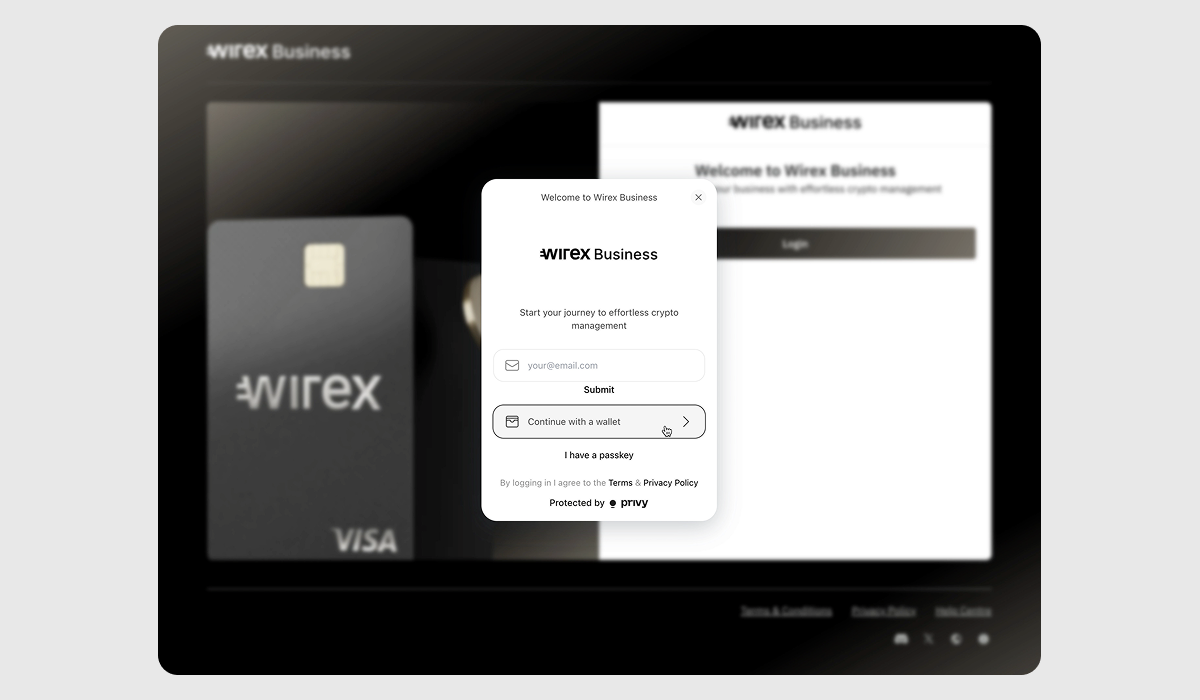
1. Choose “Continue with Wallet”
On the registration screen, click "Continue with Wallet" to begin the process.
2. Select Your Wallet
Choose a wallet from the list. You can also use WalletConnect or other supported providers.
(In this example, we’ll proceed with MetaMask, steps for other wallets will be similar.)
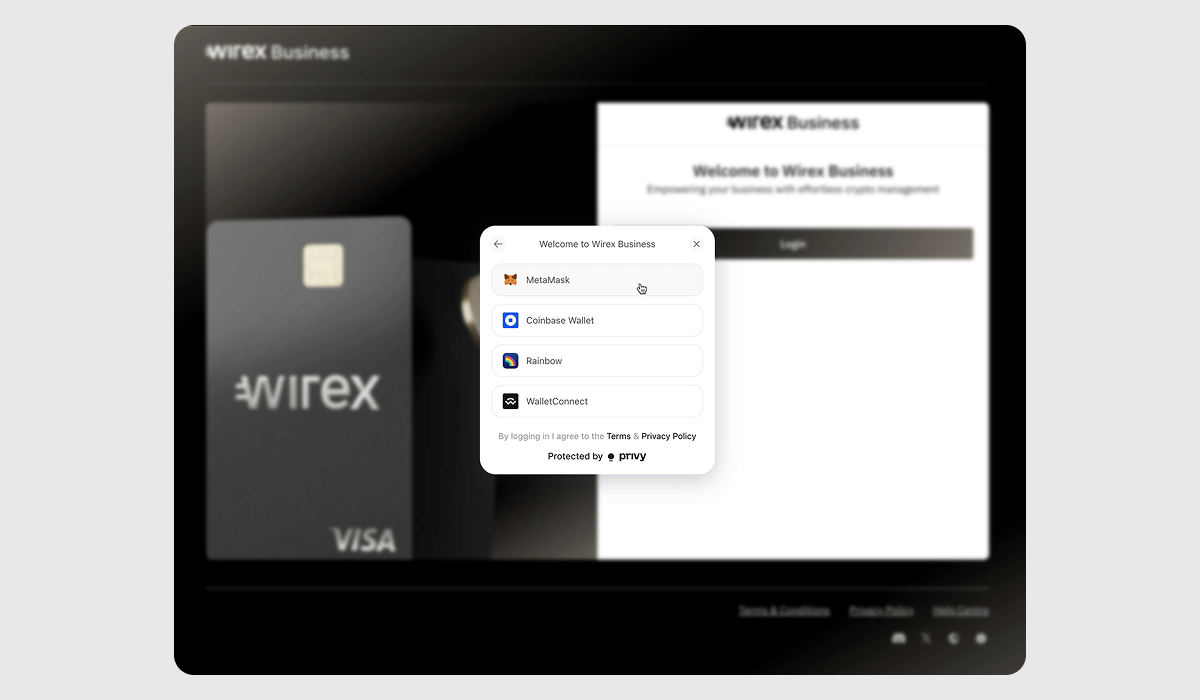
Please note that hardware wallets (such as Ledger or Trezor) are not supported at this time.
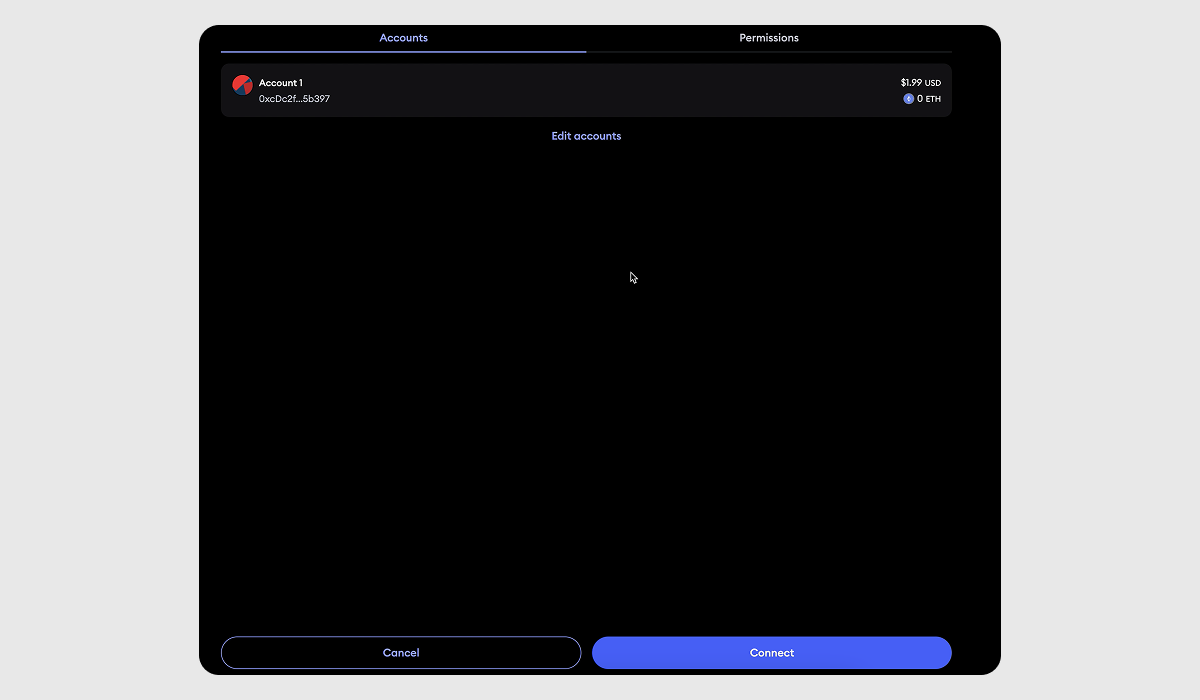
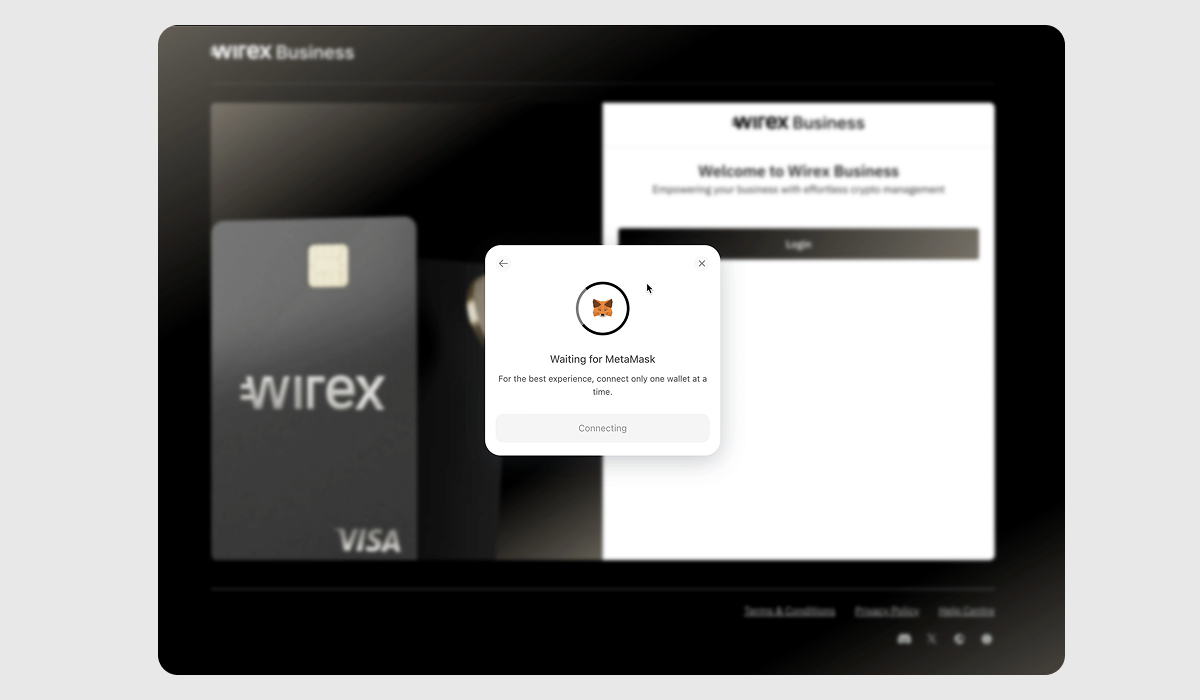
3. Metamask opens
Your MetaMask extension will open in a new window or pop-up. Click Connect to establish a link between your wallet and Wirex Business.
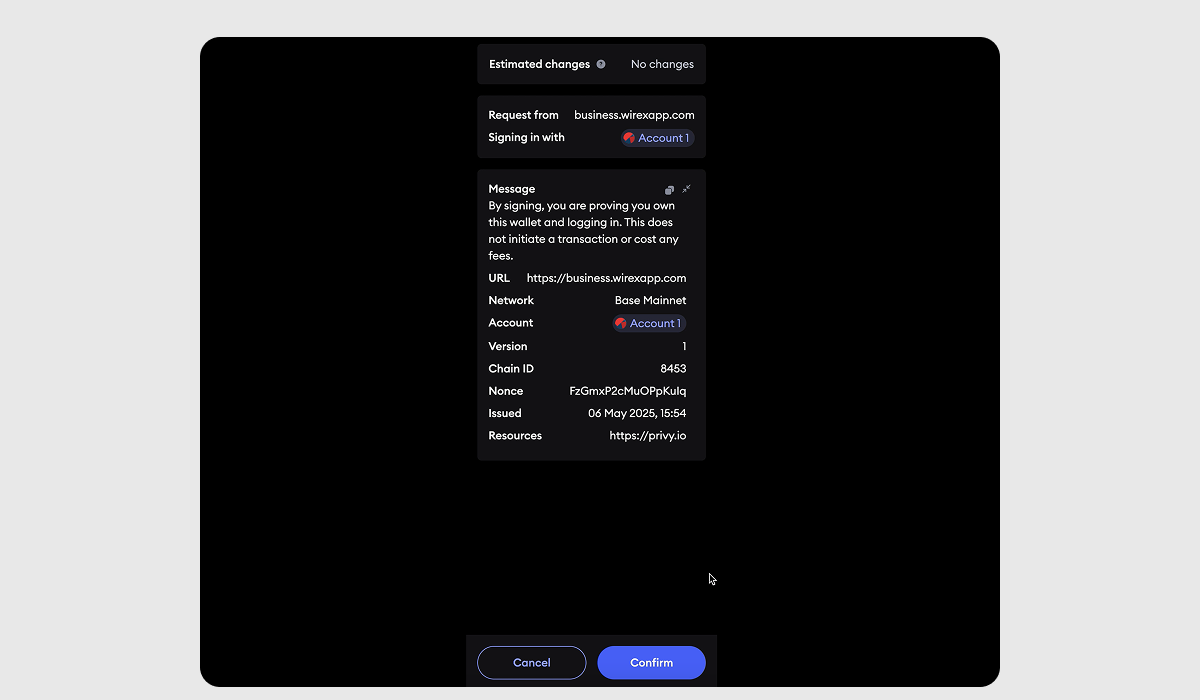
4. Confirm the Connection
You’ll be asked to sign a transaction to verify wallet ownership. This is a signature request only and does not incur any fees or blockchain charges.
Wait for the connection to complete
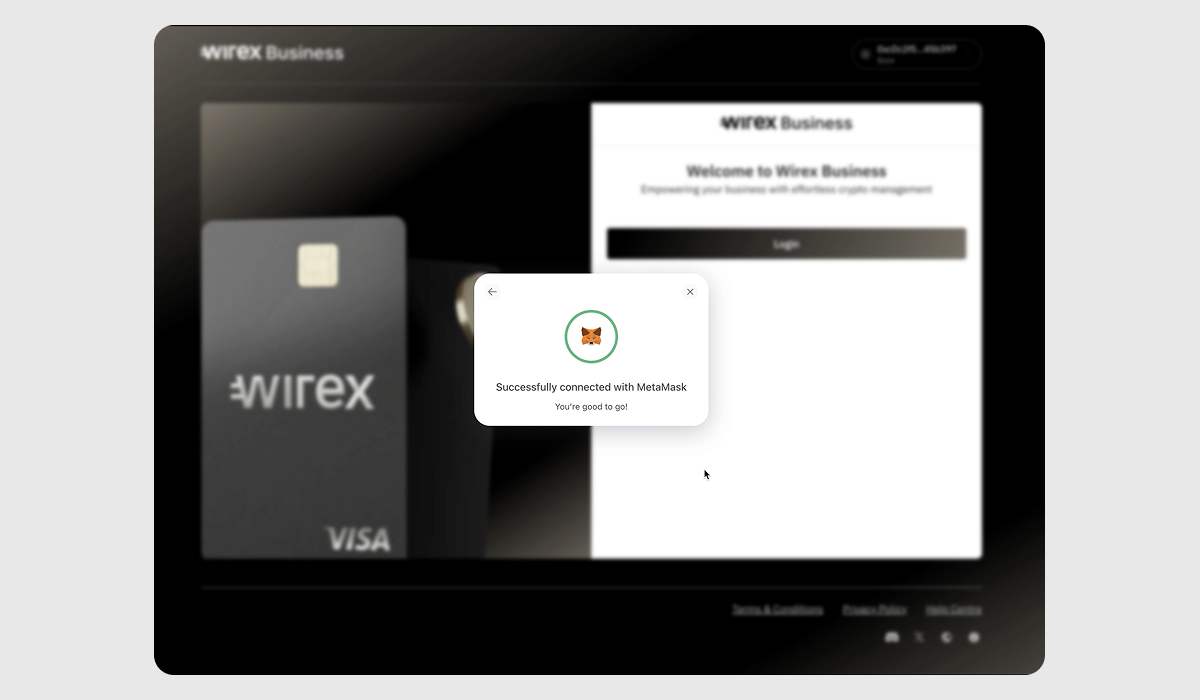
5. Connection Successful
Your wallet is now linked to your Wirex Business account. You're ready to proceed with registration!
Troubleshooting Tips
Consider taking these steps if you encounter issues with connecting your wallet:
- Pop-up blockers
Ensure your browser allows pop-ups for MetaMask to open properly. - Metamask doesn't open
Refresh the page and make sure the MetaMask extension is installed and unlocked. - No wallet detected
Try switching browsers (Chrome/Brave/Firefox) or using WalletConnect as an alternative. - Signature fails
Make sure you’re using the correct account inside MetaMask and that it’s on the supported network.
Was this article helpful?
That’s Great!
Thank you for your feedback
Sorry! We couldn't be helpful
Thank you for your feedback
Feedback sent
We appreciate your effort and will try to fix the article