Learn how to set limits, block, and close a card
Managing your cards is simple and flexible with Wirex Business.
The Card Management tab allows you to:
Set daily spend limits
Freeze and unfreeze cards
Close cards permanently
Rename cards to match their purpose (e.g., "Marketing Budget" or "Team Travel")
Below, we’ll walk you through each option step by step.
Card Daily Limit
Set a daily limit for your card to stay in control of your business spending.
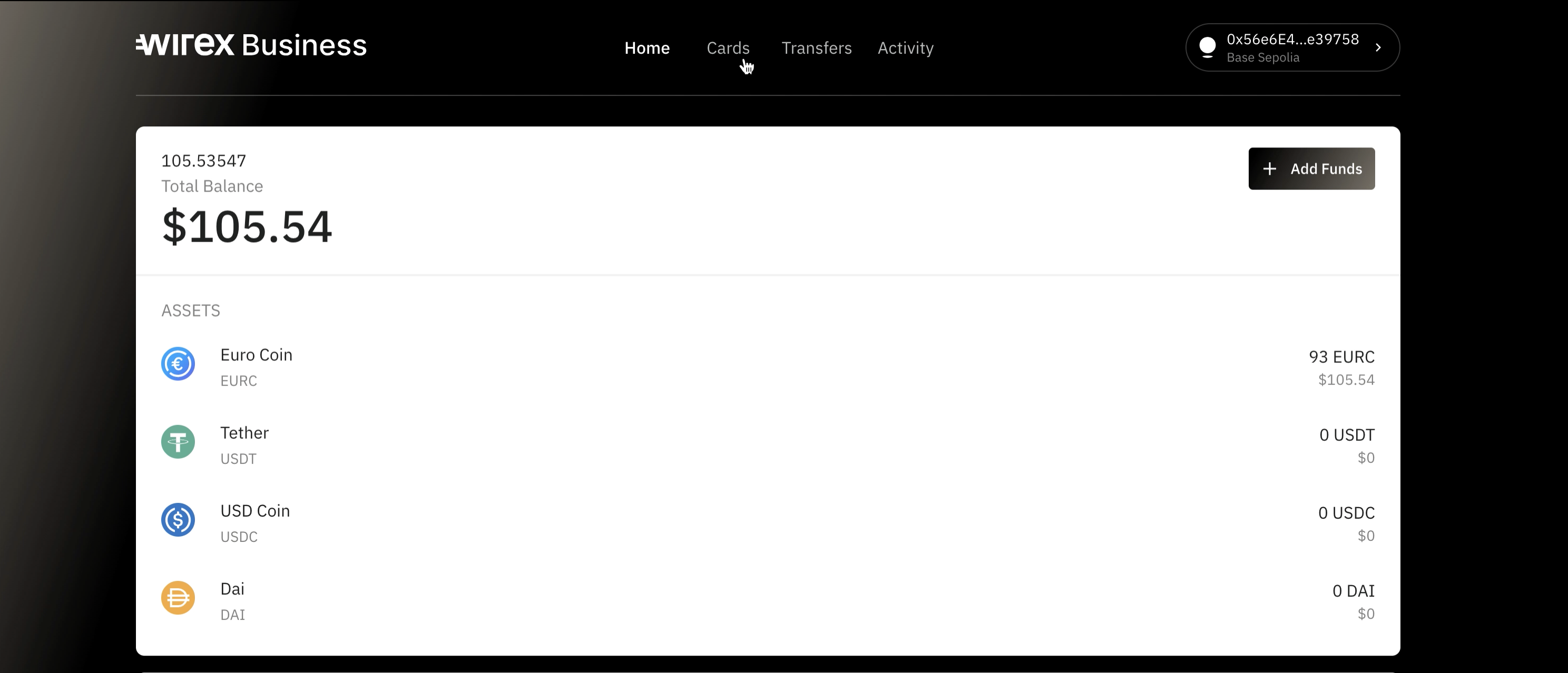
1. Open the home page and head over to Cards
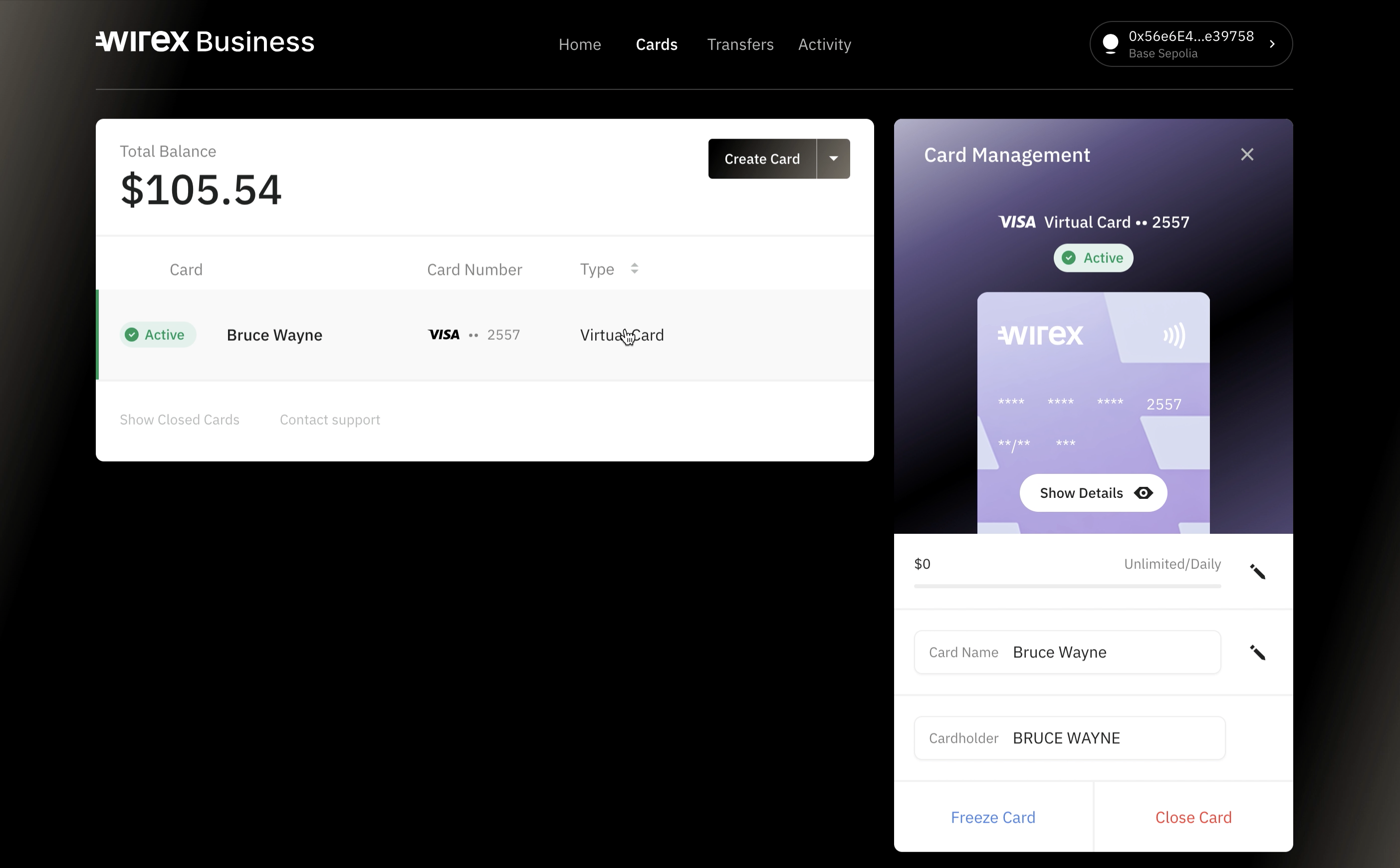
2. Choose the card for which you want to set limits
3. Click on Limits
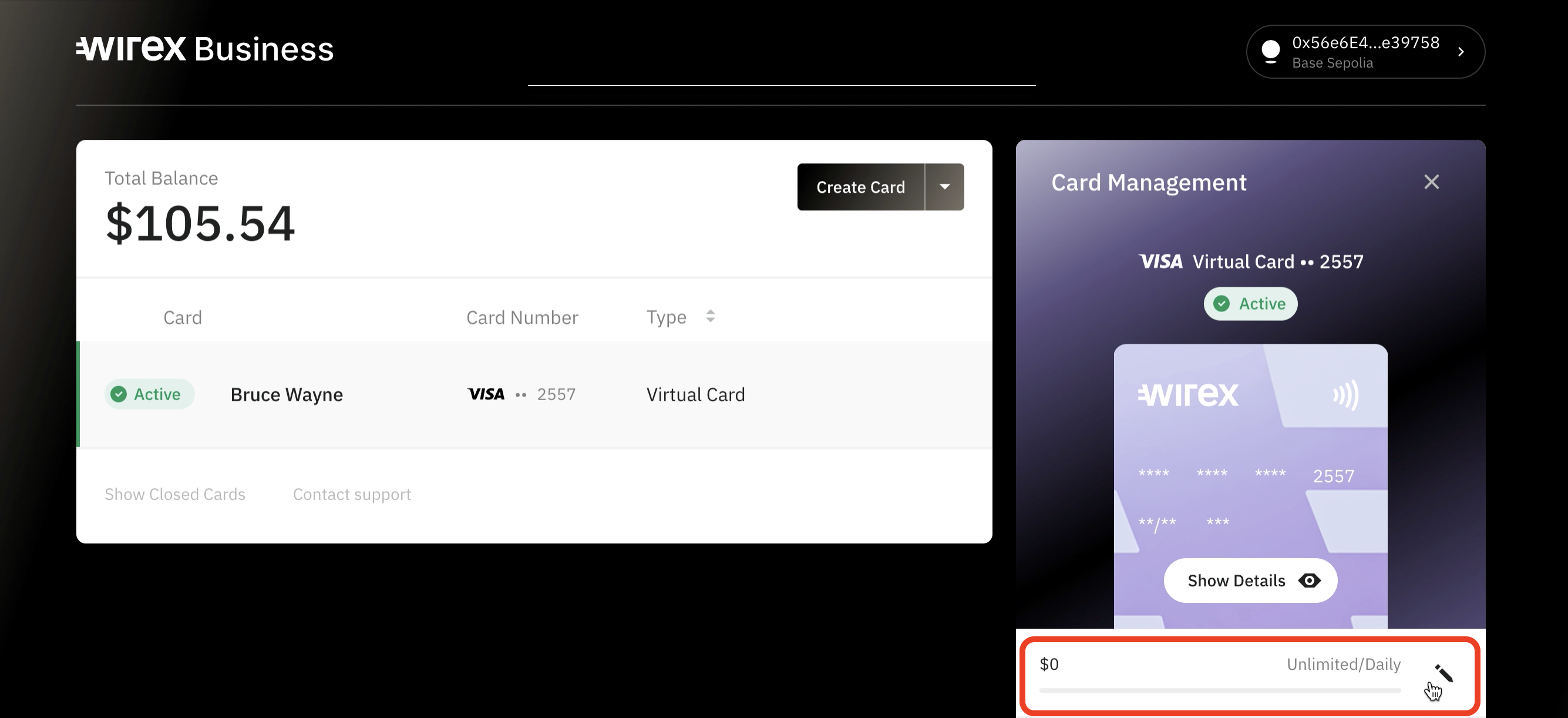
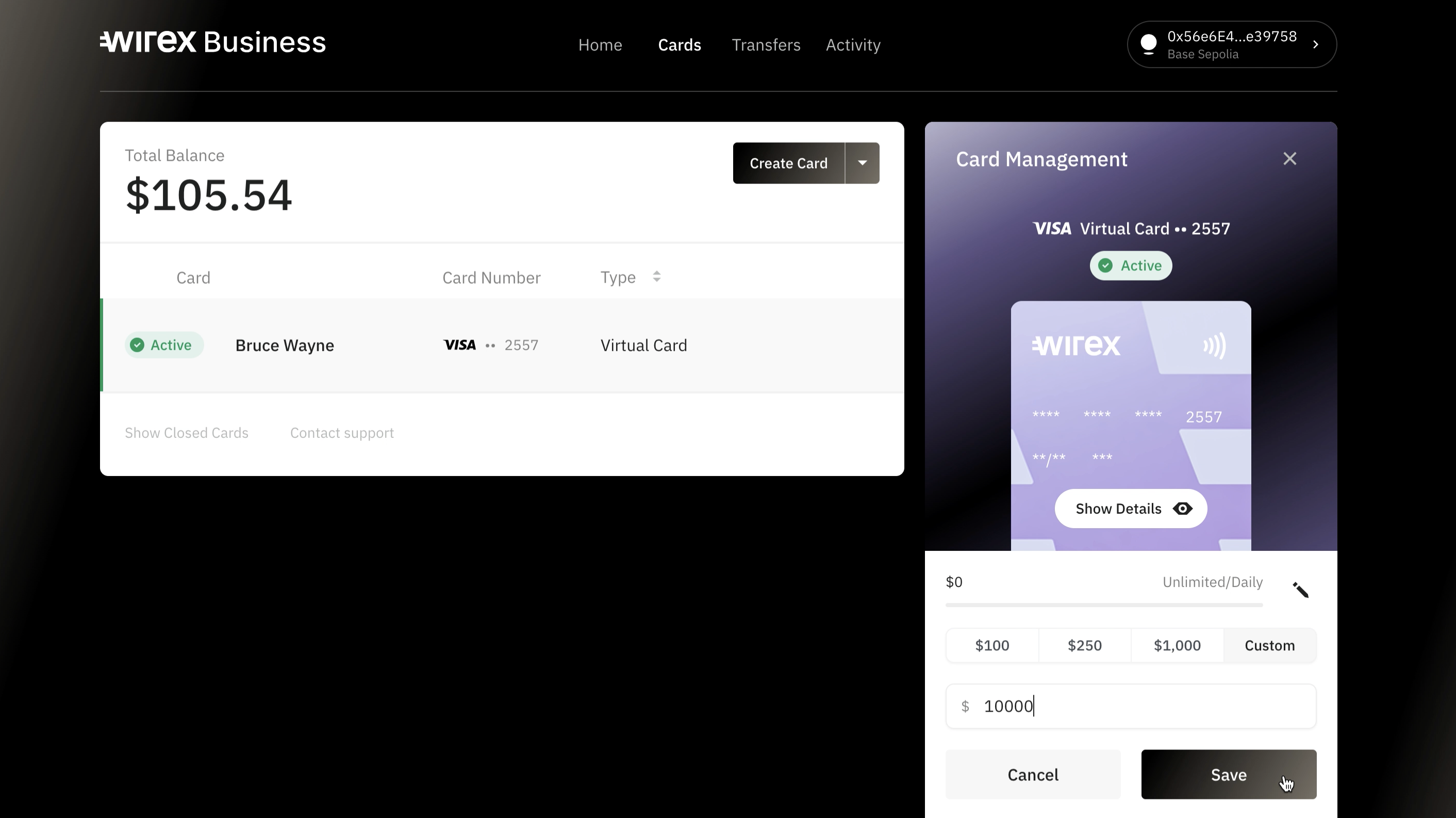
You'll find the limits section just below the card icon. By default, it’s set to $0.00 which means the card has no daily limit.4. Choose the preferred limit
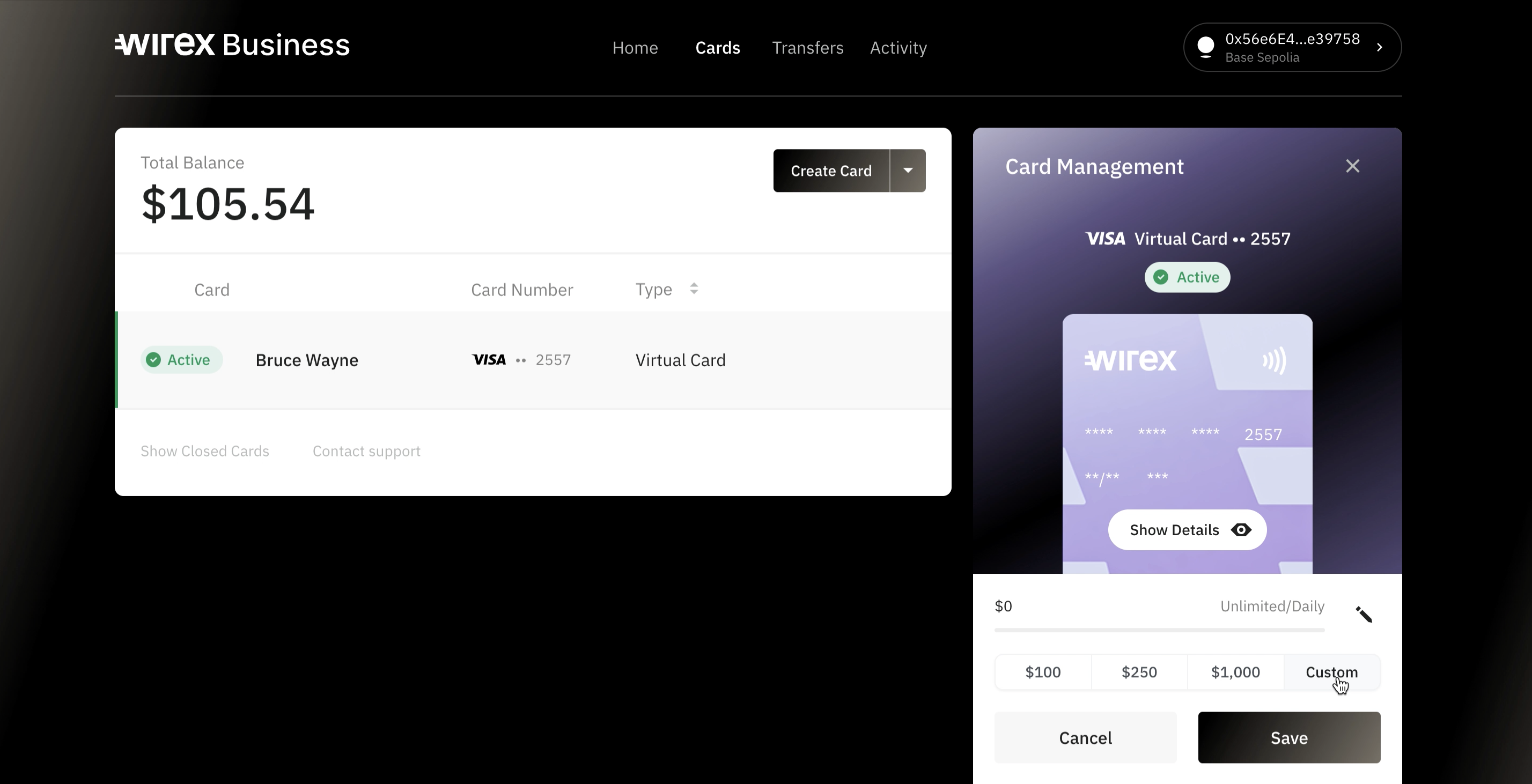
You can select a quick option ($100, $250, $1000) or choose Custom to set a daily limit that fits your needs.5. Hit Save to apply the new limit
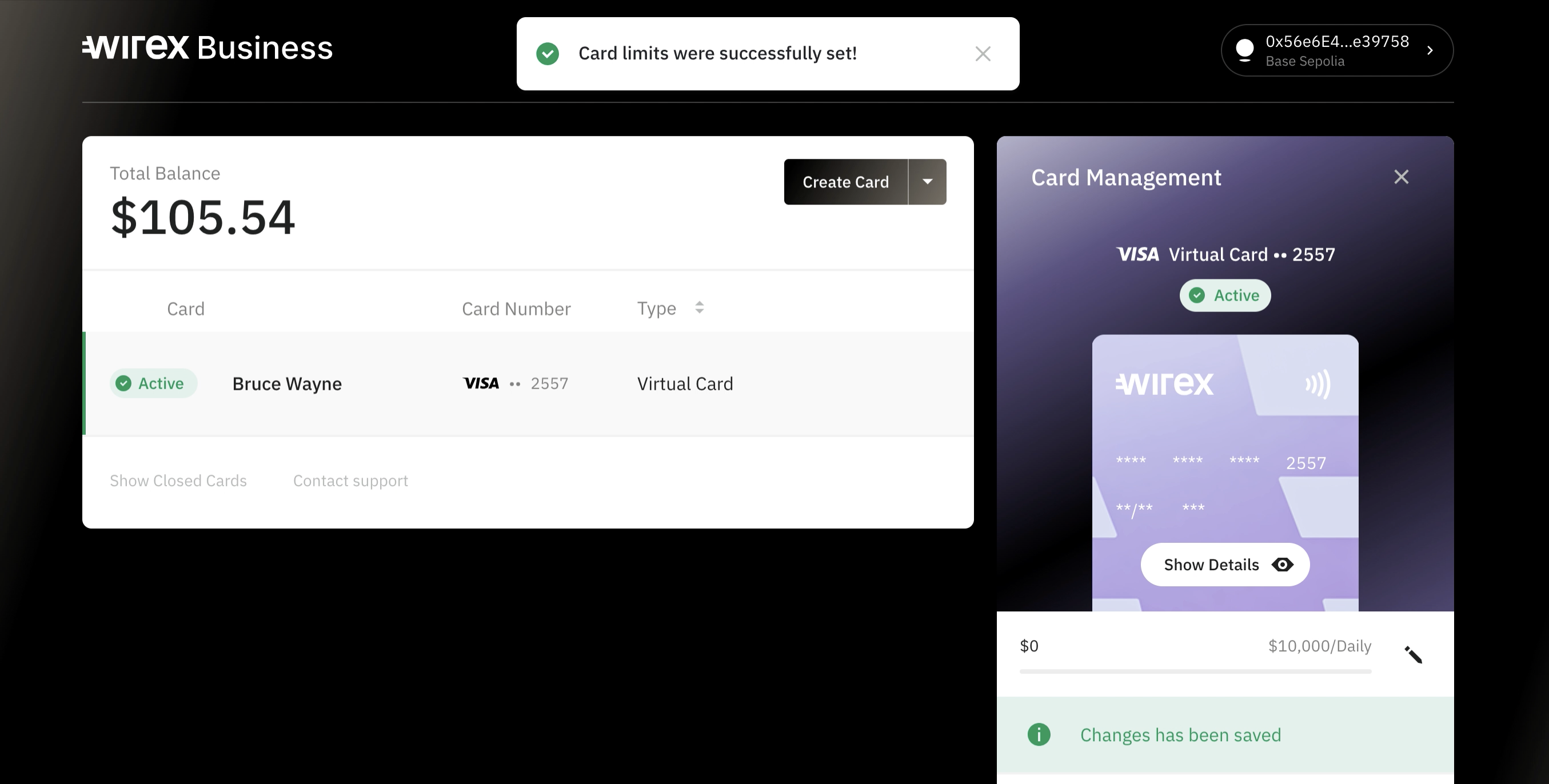
6. Done!
Freeze Card
Freezing a card is helpful when you want to temporarily restrict its use. While frozen, the card cannot be used for any type of transaction. You can unfreeze it anytime.
1. Open the home page and head over to Cards
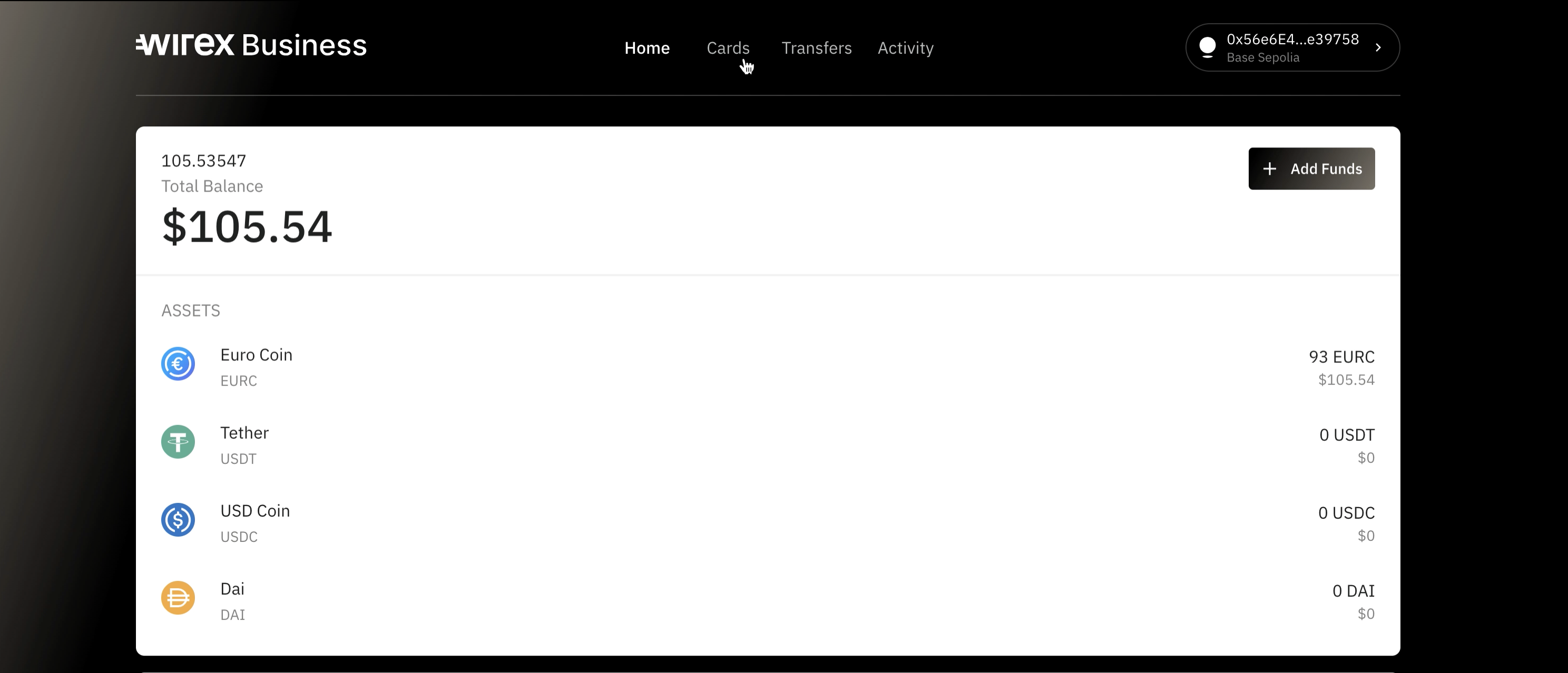
2. Choose the card you want to freeze
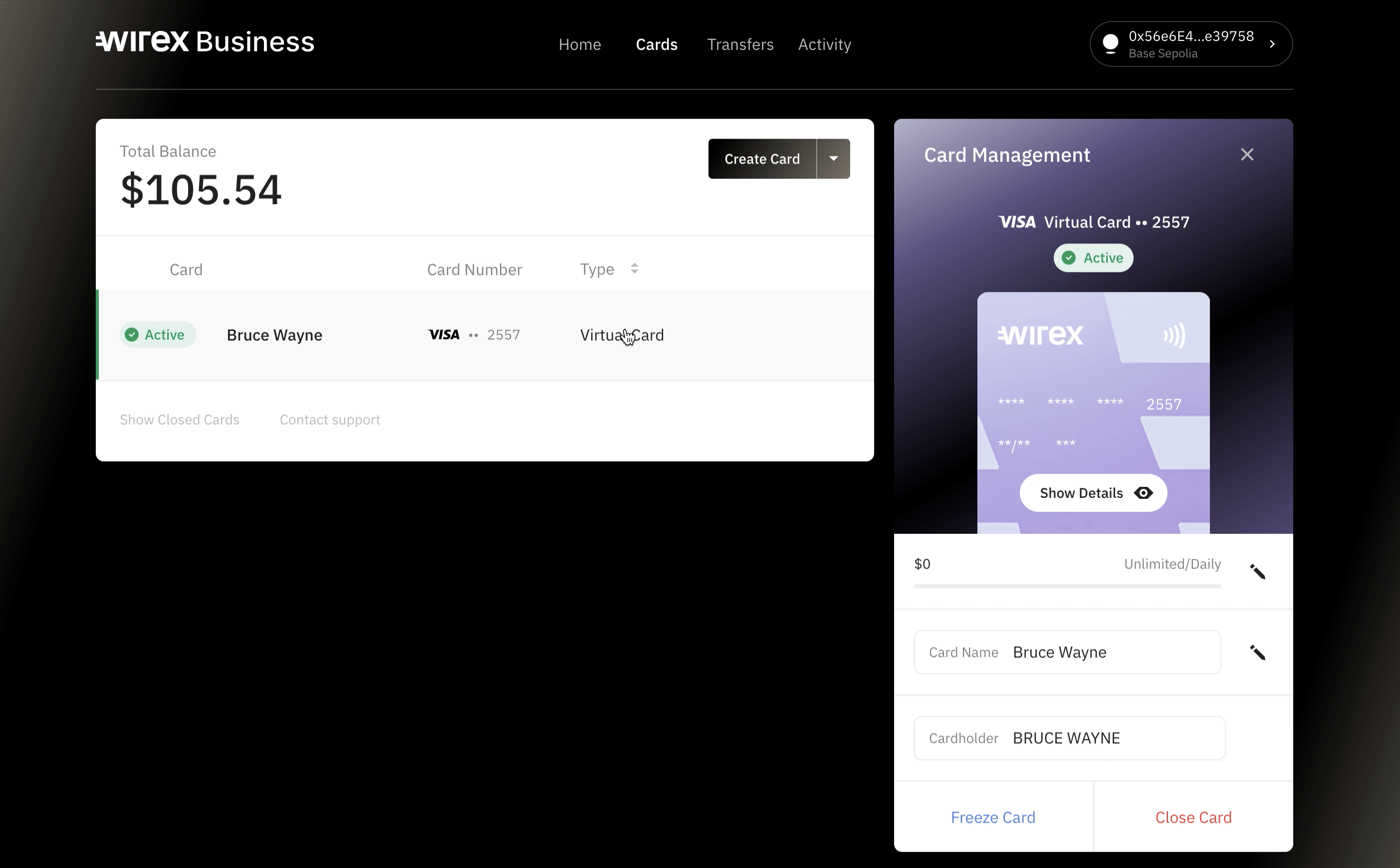
3. Click Freeze Card
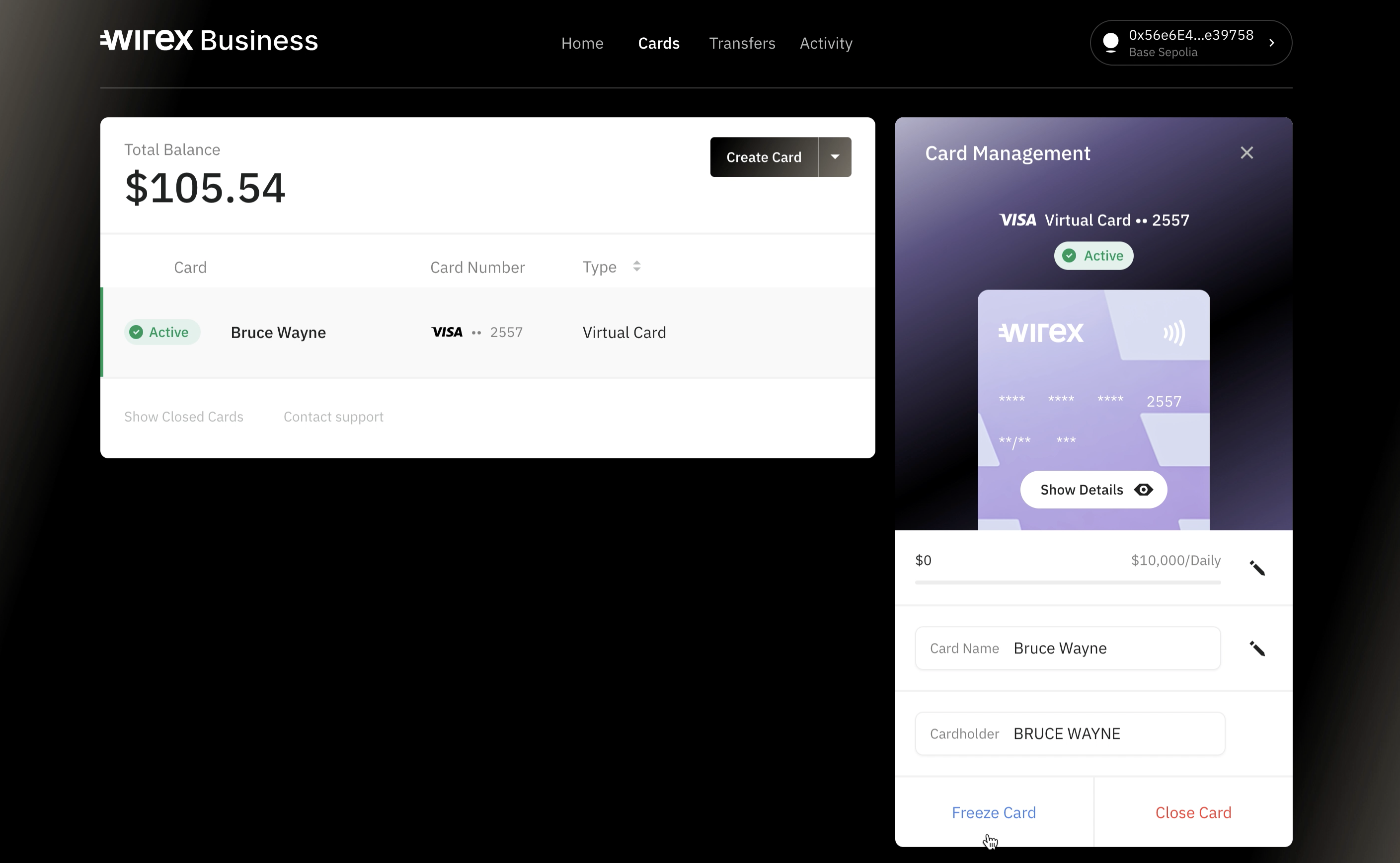
4. Done
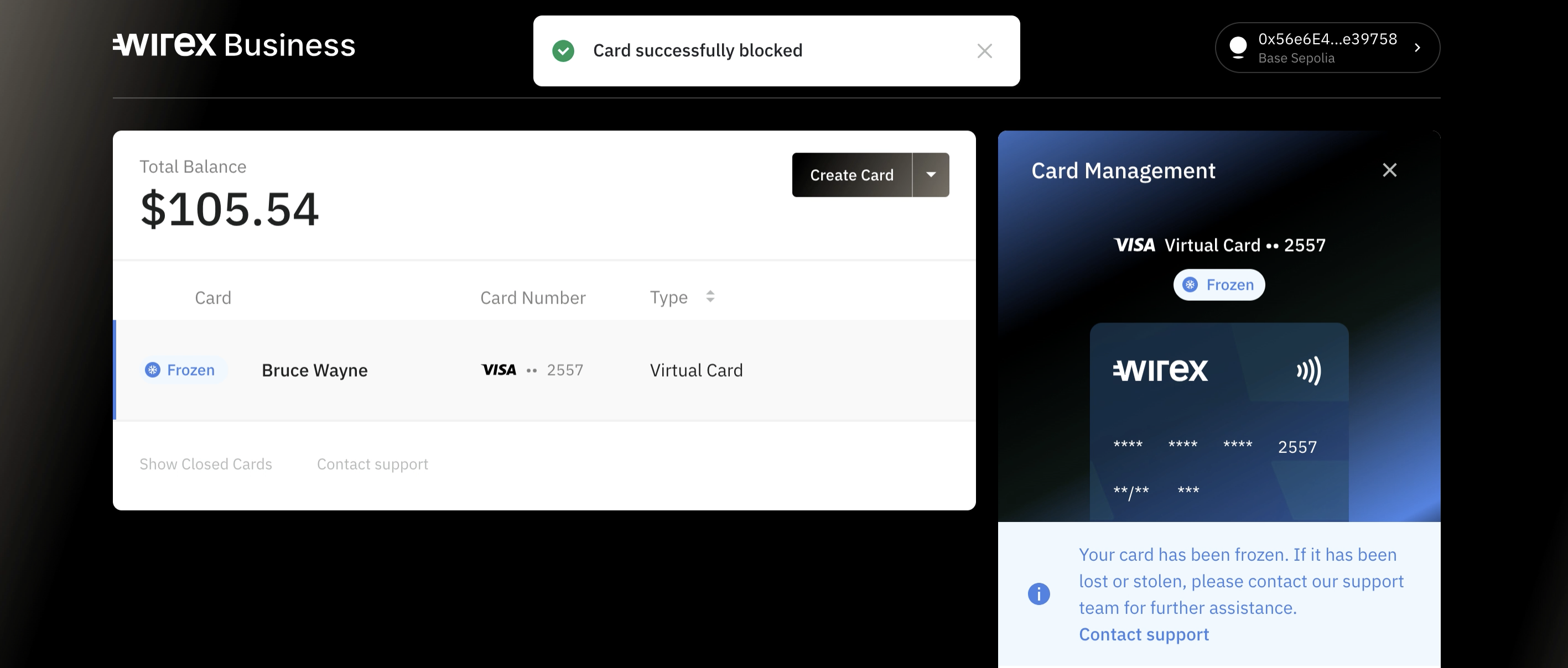
Unfreezing the card will take the same steps. Instead of Freeze Card, you will see the option Unfreeze Card.
Close Card
Closing a card is permanent — it cannot be undone. Use this option only when you're certain the card is no longer needed.
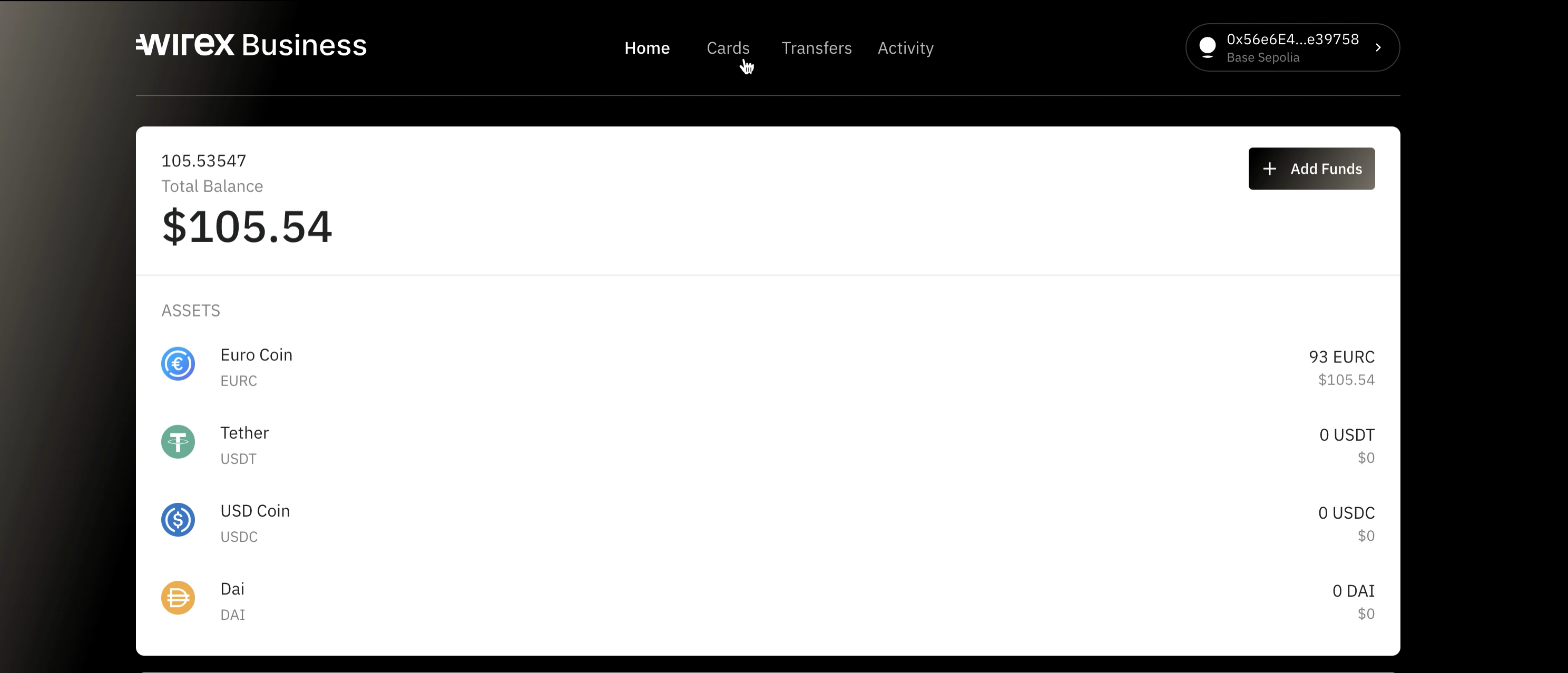
1. Open the home page and head over to Cards
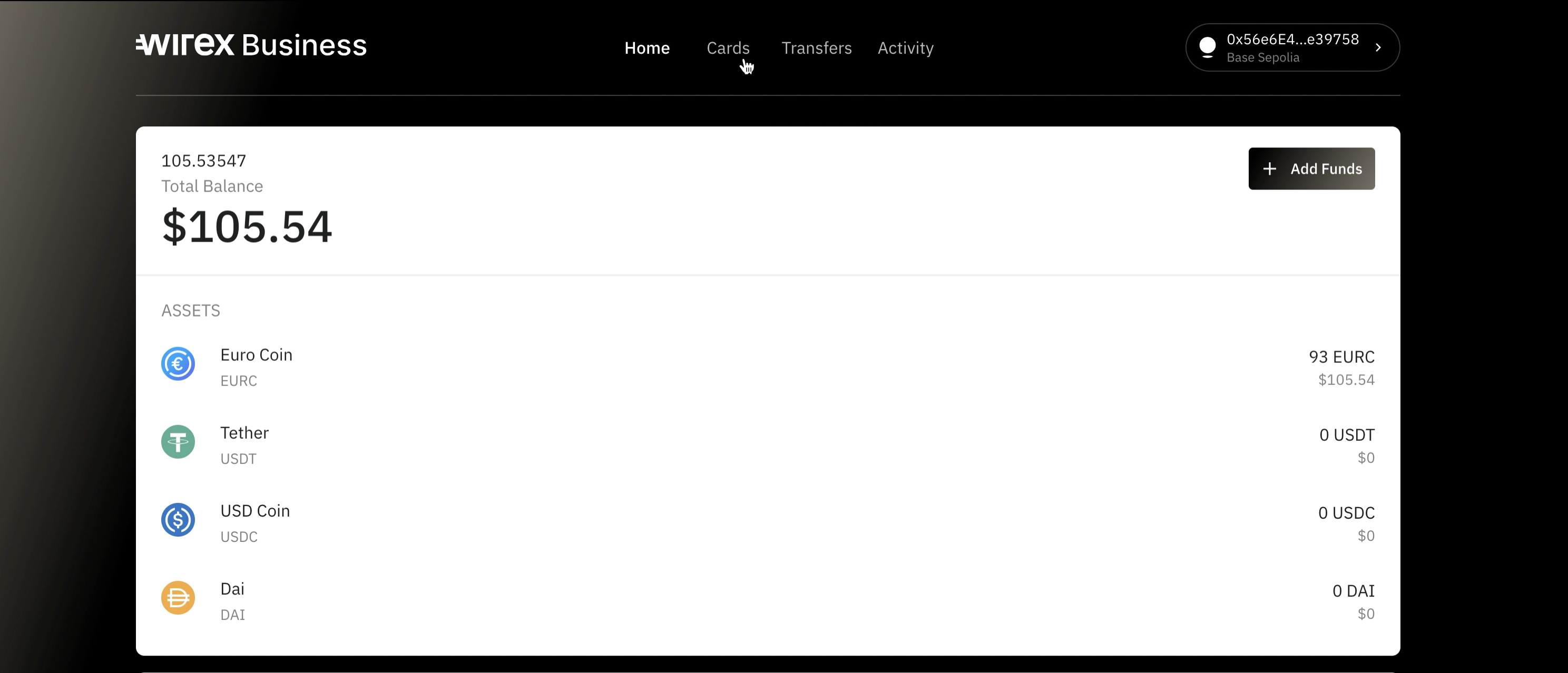
2. Choose the card you want to close
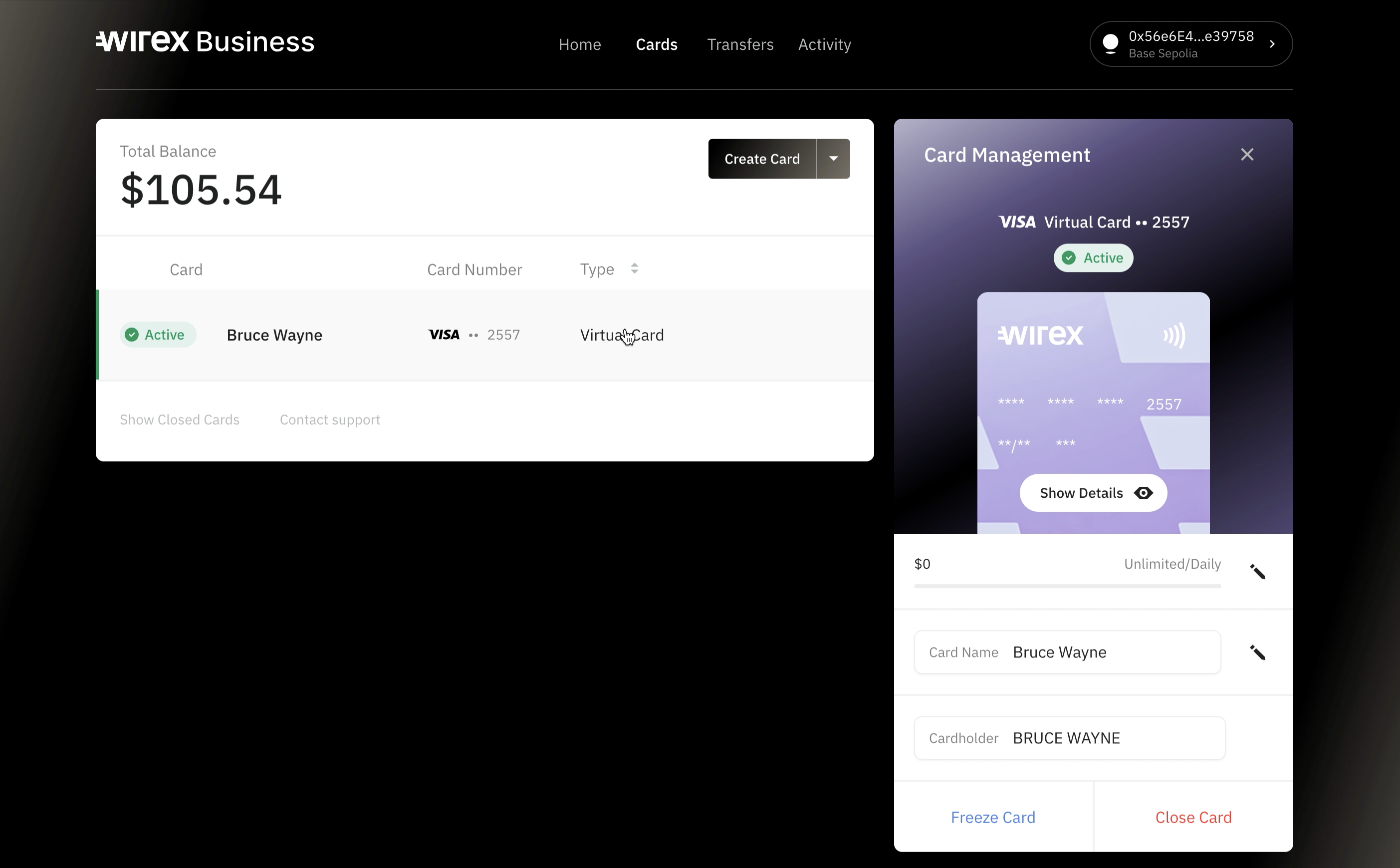
3. Click Close Card
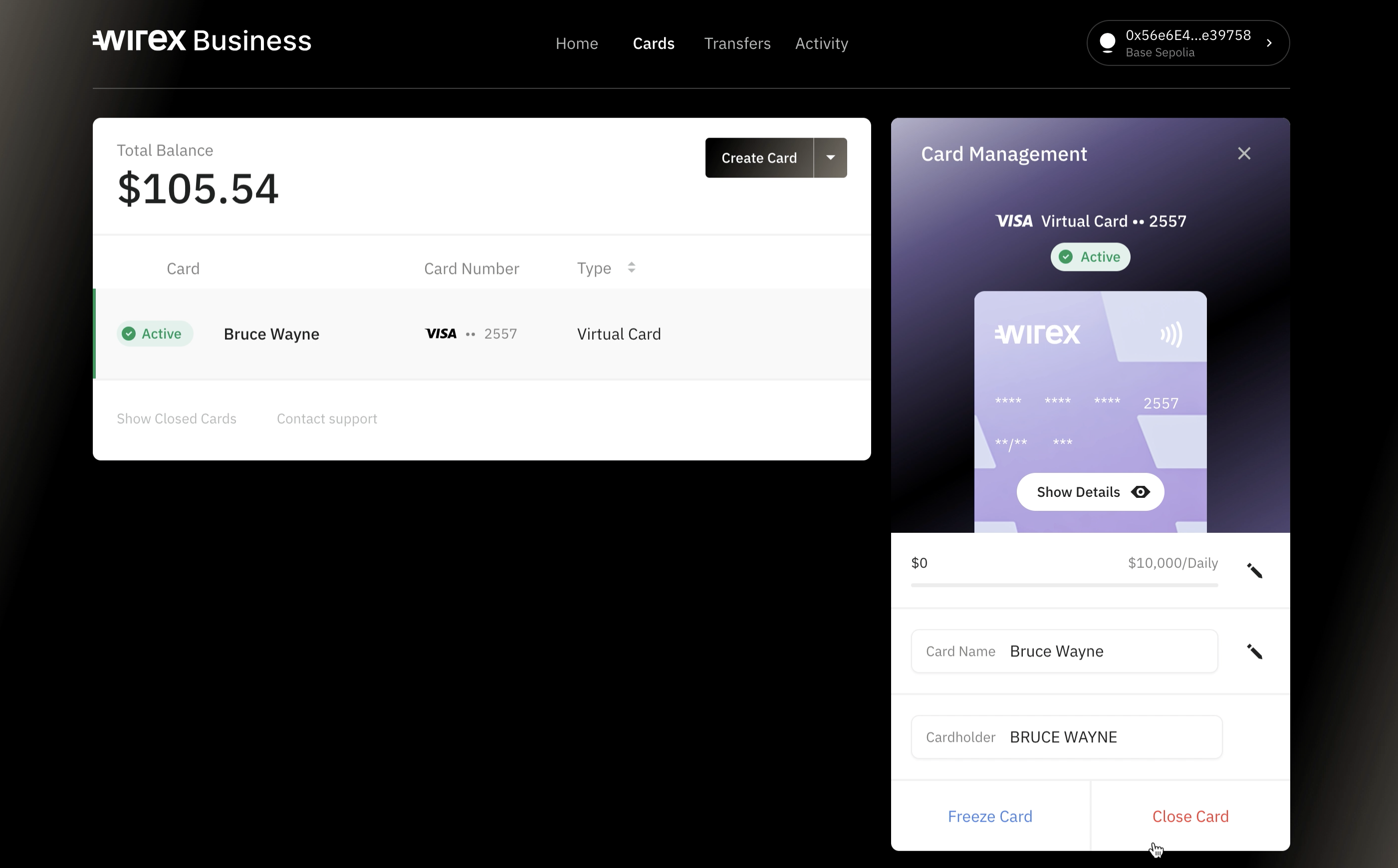
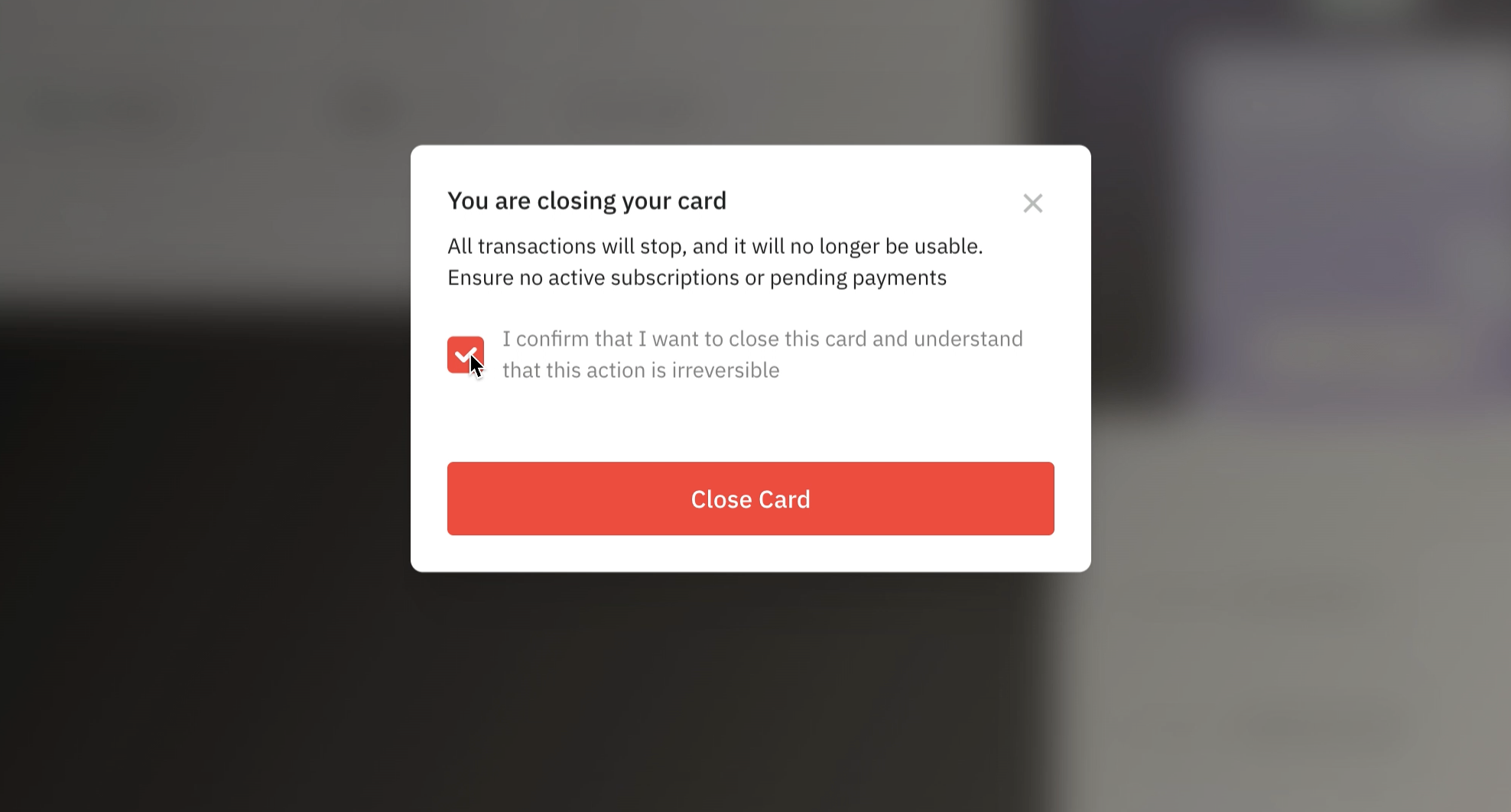
4. Confirm card closure
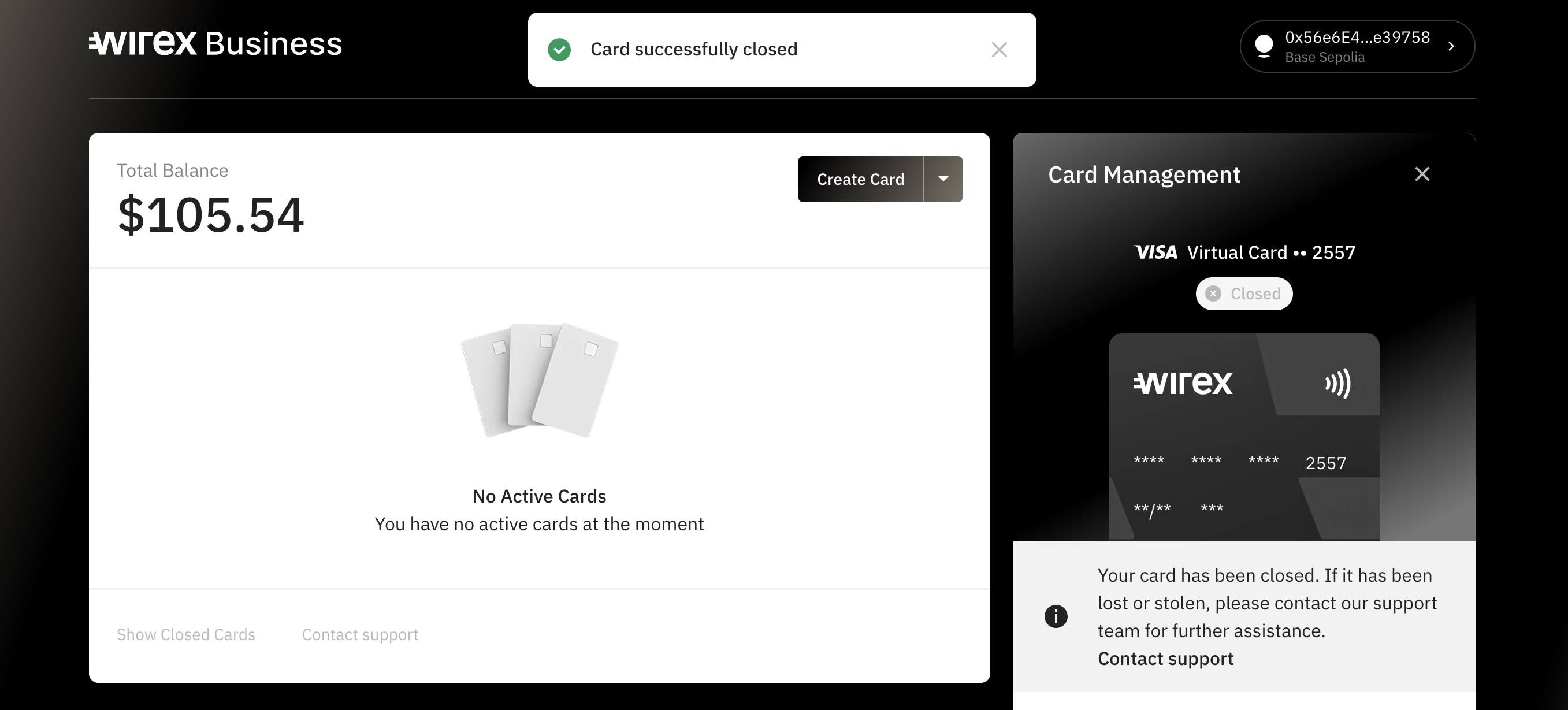
5. Done
Changing Card Name
Each card has a unique, customizable name (this is not the cardholder name). You can label a card to reflect its purpose — for example: "Ad Spend USD", "Travel Team Card", or "Operations Budget".
1. Open the home page and head over to Cards
2. Choose the card you want to rename
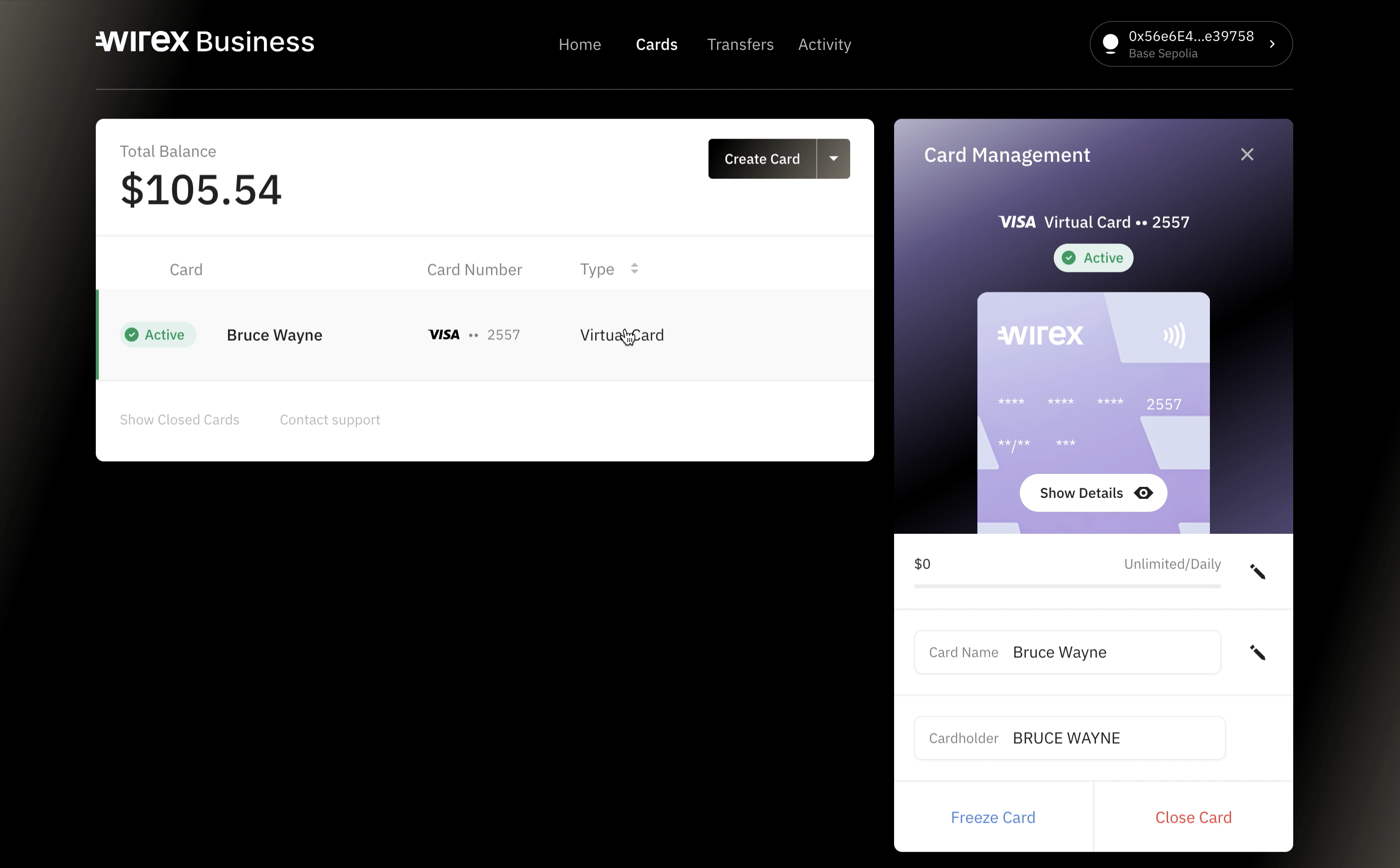
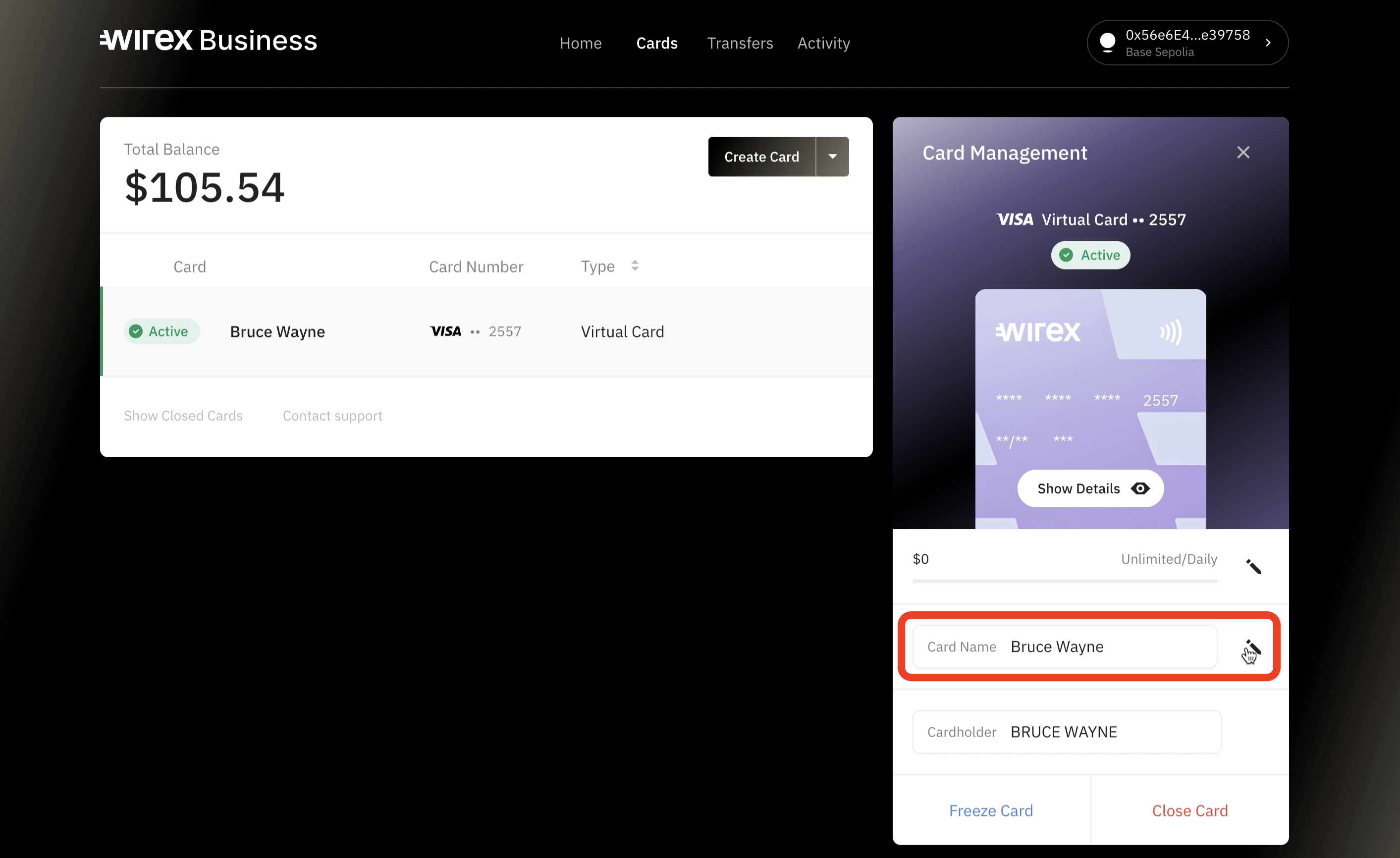
3. Click Edit next to Card Name
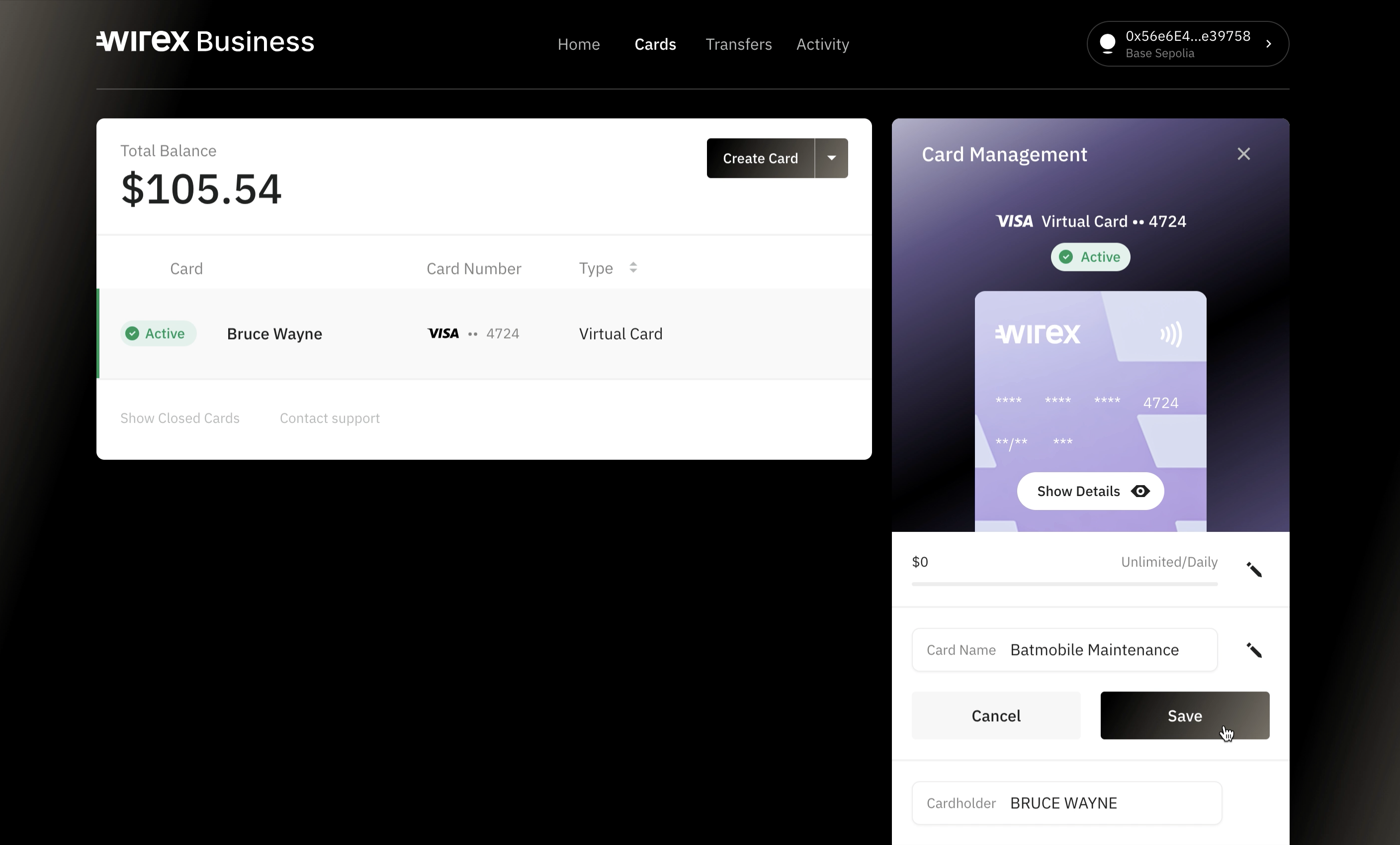
4. Enter the new name and hit Save
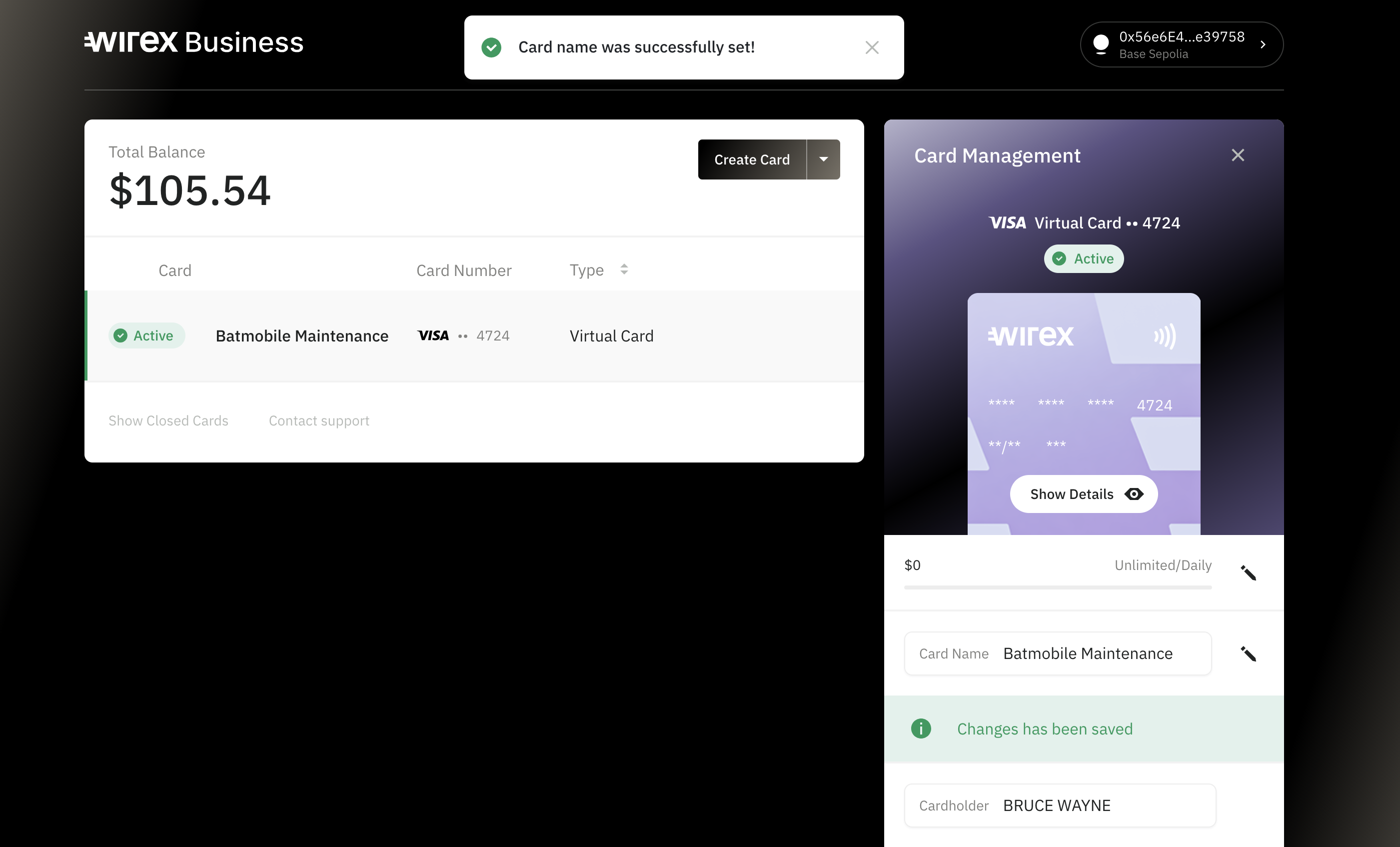
5. Done
Need help?
If you need any help managing your cards, don’t hesitate to reach out via the chat widget in your Wirex Business dashboard. ✅
Was this article helpful?
That’s Great!
Thank you for your feedback
Sorry! We couldn't be helpful
Thank you for your feedback
Feedback sent
We appreciate your effort and will try to fix the article