What is a Passkey?
A passkey is a modern authentication method designed to replace traditional passwords with a more secure and convenient alternative. Passkeys use cryptographic authentication, meaning they are tied to your device and can’t be easily phished or stolen. With passkeys, you can log in to your Wirex Business account using biometrics (fingerprint or facial recognition) or a device PIN, eliminating the need to remember complex passwords.
Why Use a Passkey?
✅ No more passwords to remember
✅ Stronger protection against phishing and credential theft
✅ One-tap login experience on supported devices and browsers
Now let’s go through the setup process.
How to Set Up a Passkey
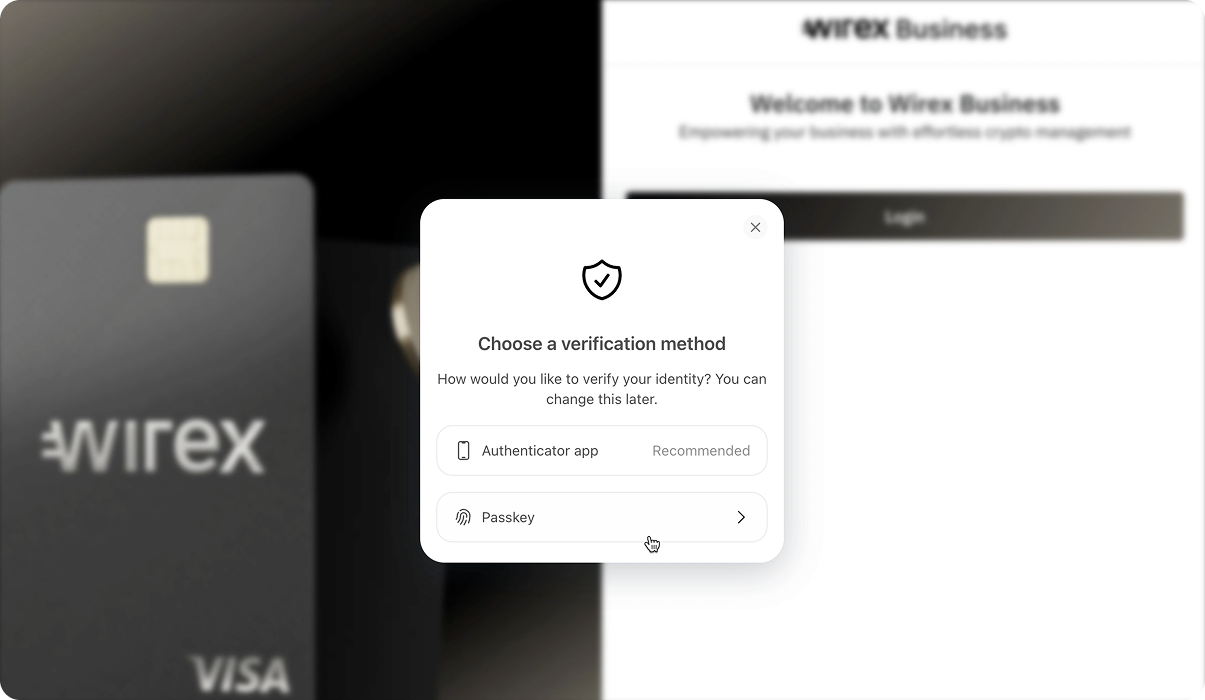
1. Select “Passkey” During Registration
During account registration, you’ll be prompted to enhance your security. Click “Passkey” to begin the setup process.
2. Click "Add a new Passkey"
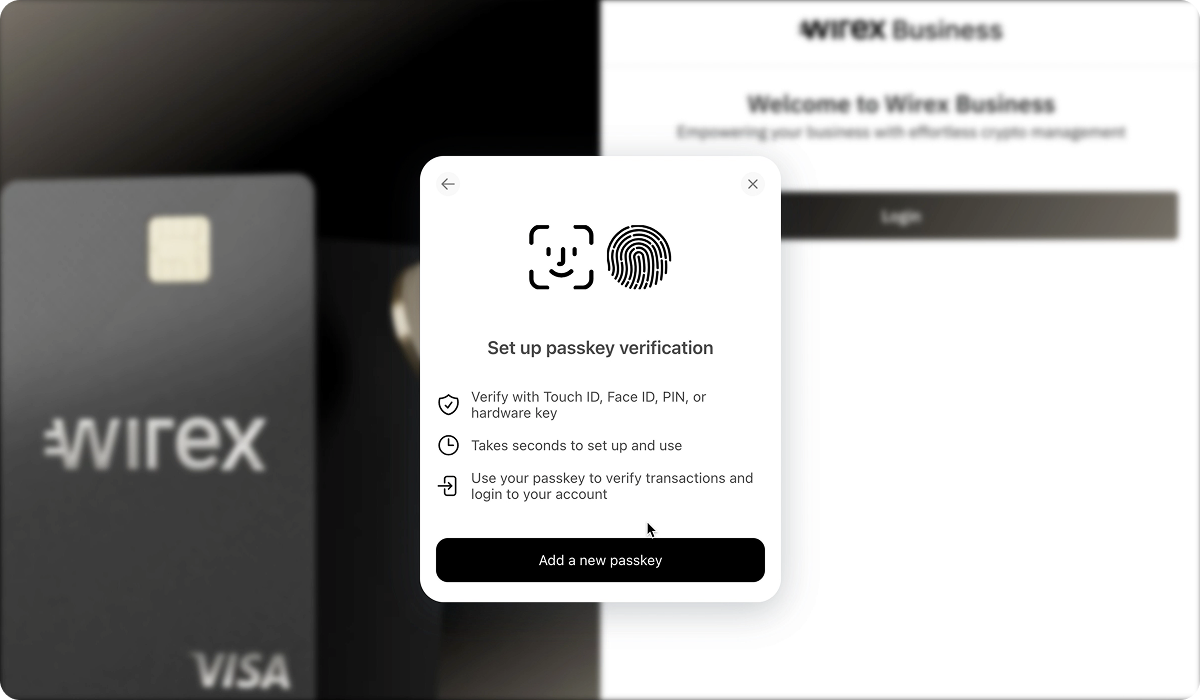
3. Choose Your Passkey Provider
The system will detect compatible software on your device, such as iCloud Keychain, Microsoft Hello, 1Password, Keeper, or others.
Follow the on-screen prompts from your selected passkey tool to complete the setup. Exact steps vary slightly depending on your device and software.
4. Last step
Once setup is complete, you’ll see a success message.
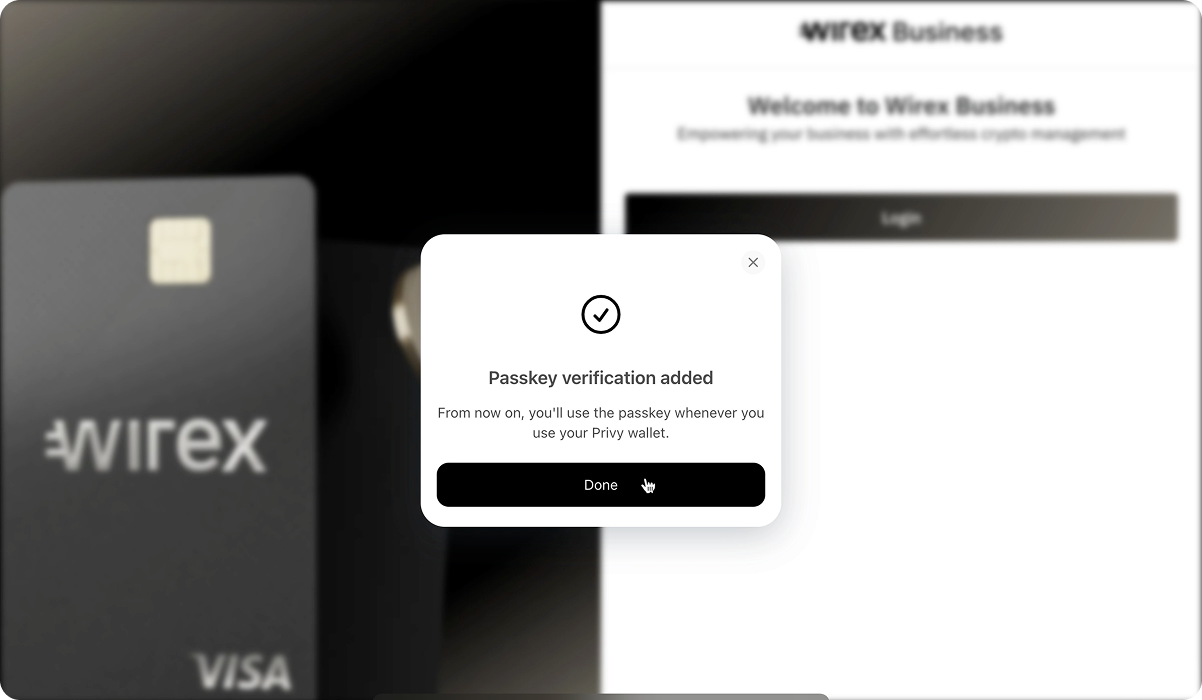
✅ Welcome to the passwordless world — your account is now secured with a passkey!
Common Issues and How to Fix Them
1. Biometrics Not Recognized
- Update your device’s biometric settings and re-register your fingerprint or face ID.
- Alternatively, use your device PIN if available.
2. Passkey Option Not Showing in Wirex Business
- Ensure your app is updated to the latest version.
- Check if your device supports passkeys; some older models may not have this feature.
Passkeys provide a seamless and secure way to access your Wirex Business account. If you encounter any issues, you can always contact our support using the web widget.
Was this article helpful?
That’s Great!
Thank you for your feedback
Sorry! We couldn't be helpful
Thank you for your feedback
Feedback sent
We appreciate your effort and will try to fix the article